


Losing important files on your Mac can happen in seconds. One accidental deletion can wipe out very important photos, videos, and project files that you thought were safely stored on your Mac computer or external drives.
The good news is that deleted files are not always gone permanently.
However, many people are confused about which software they should use to recover those files without corruption. Searching on Google and YouTube takes a lot of time. They have to watch many videos and read several articles just to find out which software actually works.
So, in this article, I am providing a simple solution to recover lost files on your Mac, and it’s free for up to 1 GB of data recovery.
What’s Special About This Software?
- The software supports recovery from:
- Internal SSDs
- External hard drives
- USB flash drives
- SD cards
- Portable SSDs
- Formatted drives
Other useful features include:
- Preview files before recovery
- Up to 1 GB of free data recovery
How to Recover Deleted Files on Mac
Step 1: Download and Install the Software
The method is very simple. Visit Stellarinfo.com and download the Stellar Free Mac Data Recovery Software.
Install the software on your Mac computer.
Then open the software.
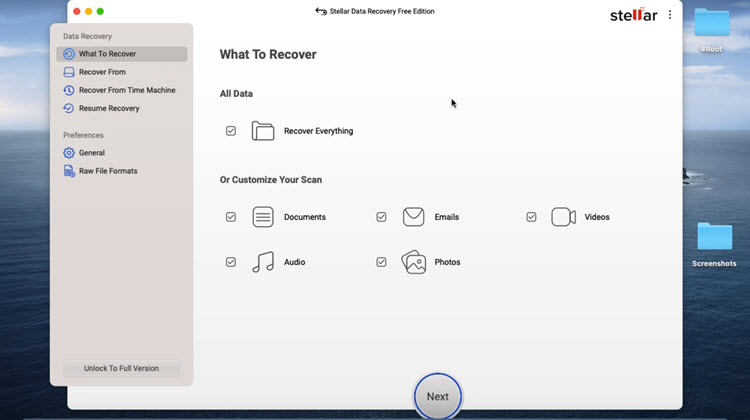
Step 2: Choose the Type of Data to Recover
You will see the “What do you want to recover?” screen. Choose “All Data” or customize the scan by selecting a particular file type such as Photos, Videos, Documents, or others.
Then click the “Next” button.
Step 3: Select the Drive for Recovery
Now you will see the “Recover From” screen. Select the drive you want to recover data from. It can be an internal hard drive, external USB drive, or any other drive where you lost your files.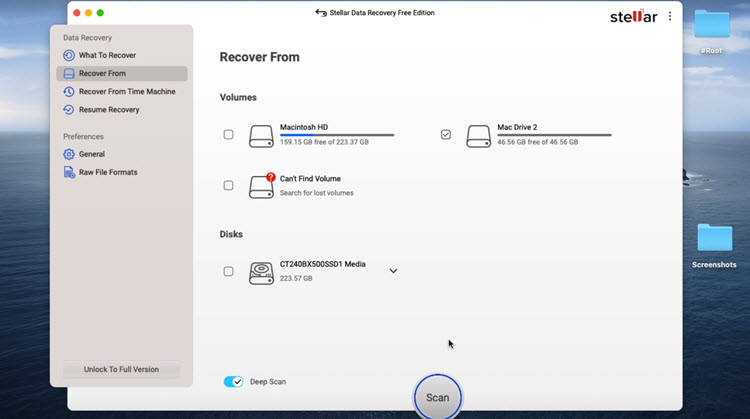
If you select Volumes, it will allow you to switch to Deep Scan mode.
Then click the “Scan” button.
Step 4: Scan the Drive for Deleted Files
The software will take a few minutes to scan the selected drive. The scan time depends on the size of the drive.
After the scan is complete, it will display a list of recoverable files.
First, deselect all files. If you accidentally keep all files selected and click the “Recover” button, the software may immediately start recovering everything. So it is better to deselect all files first.
Step 5: Find and Preview Recoverable Files
On the left side of the screen, you can switch between different views such as “Classic List” and “File List.” Then select the required file type or folder on the right side. This helps you quickly find specific file types.
You can also sort files by file name, creation date, size, and more. This makes it easier to find your files quickly.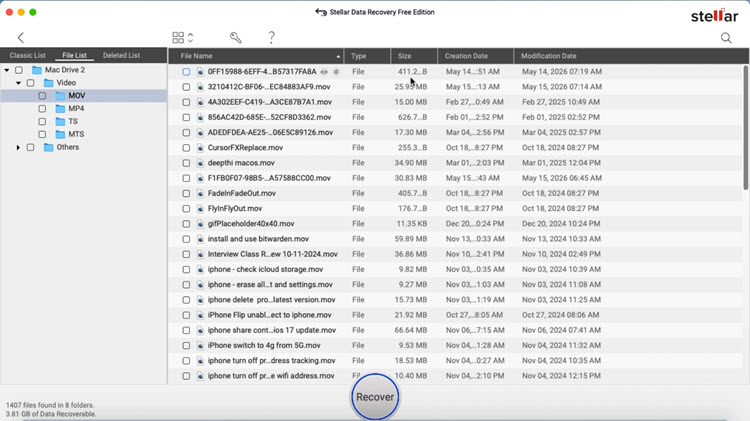
After finding the file, right-click it and choose the “Preview” option to preview the file. If it is the file you want to recover, tick the checkbox next to its name.
Then click the “Recover” button.
Step 6: Recover and Save Your Files
The software will ask you to choose a location on your Mac to save the recovered file. Select the location and click the “Save” button. The file will then be saved to that location.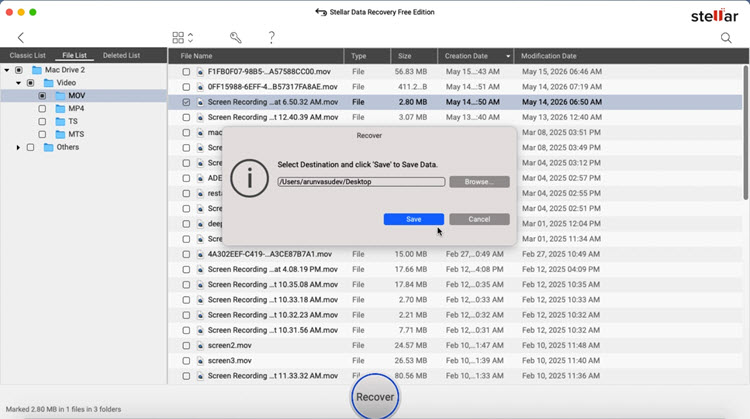
That’s it.
Keep this in mind: the free version only allows you to recover up to 1 GB of data for free. After that, the software will ask you to upgrade if you want to continue recovering more files.
Frequently Asked Questions (FAQ)
1. Can I recover deleted files on Mac for free?
Yes. Stellar Free Mac Data Recovery Software allows you to recover up to 1 GB of data for free.
2. What types of files can be recovered?
You can recover photos, videos, documents, audio files and many other file types.
3. Can this software recover files from external drives?
Yes. The software supports recovery from external hard drives, USB flash drives, SD cards, portable SSDs, and other storage devices.
4. Does the software work on formatted drives?
Yes. It can scan and recover files from formatted drives if the data has not been completely overwritten.
5. Can I preview files before recovering them?
Yes. The software includes a preview feature that lets you check files before recovery.
6. Is it safe to recover deleted files using this software?
Yes. The recovery process is generally safe and does not damage your existing files or storage devices.
7. What happens after the 1 GB free recovery limit?
After recovering 1 GB of data, the software will ask you to upgrade to a paid version for additional recovery.
Recovering deleted files on a Mac is easier than many people think. With Stellar Free Mac Data Recovery Software, you can recover photos, videos, documents, and other important files without paying for expensive recovery tools. The free version is a good option for recovering small amounts of data quickly and safely.